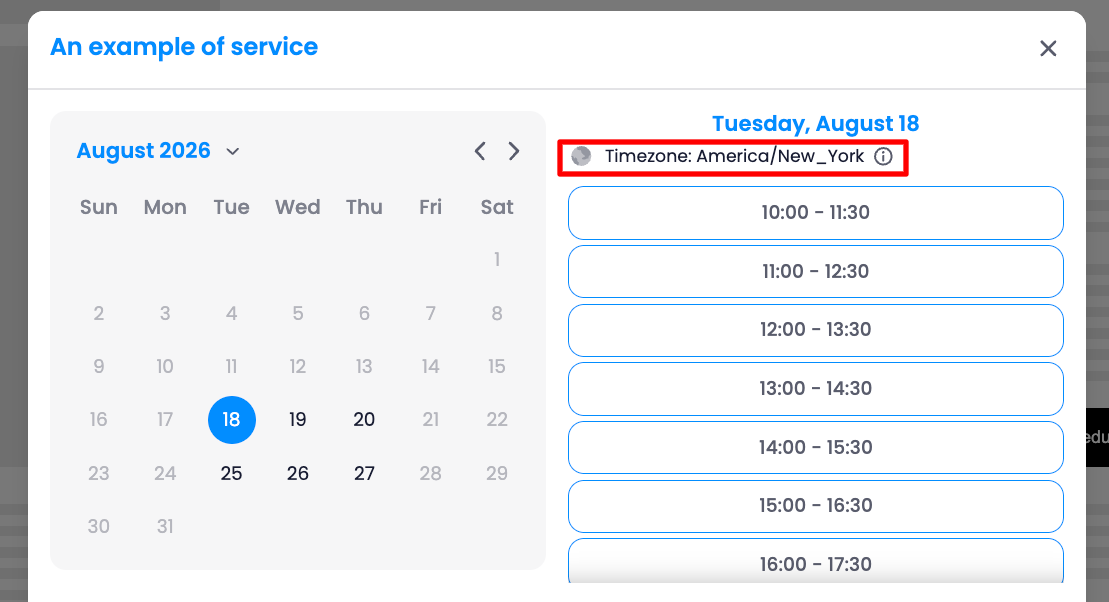
This helps customers understand which timezone the available appointment times are based on.
- Configure Skip Cart: Enable Skip cart if you want customers to go directly to checkout after selecting their booking. When enabled, customers can bypass the cart step and proceed directly to Checkout.
Translate the Widget
The Translation section allows you to customize the text displayed in the booking widget and add translations for different languages.
Add a Language
- Click Add language.
- Select the language you want to add.
- Configure the translated text for the widget.
You can customize the text displayed on your widget:
General Text
Date not selected message: Please select a date
Time not found message: No times available
Time not found sub message: Please select another date
Time slot not selected message: Please select a time slot
Number of slots Title: Number of slots
Number of slots Description: Number of consecutive slots to book
Book now button Text: Book now
Capacity Title: Capacity
Staff Title: Staff
Confirm button Text: Confirm
Standard booking
Confirm booking title: Confirm booking
Checkout notice Title: Booking will be confirmed after checkout.
Checkout notice Description: You will receive an email confirmation with appointment
Quantity title: How many people will be attending?
Quantity description: Minimum of 1 attendee is required.
Choose a staff Title: Choose a staff member
Choose a staff – Placeholder: Choose a staff member
Instant booking
Confirmed title: Booking confirmed
Confirmed message: You will receive an email confirmation with appointment
Confirmed email title: Almost Done! Confirm Your Email to Complete Booking
Confirmed email message: You will receive an email with appointment details and
Checkout notice Title: Booking is not requiring payment at checkout.
Checkout notice Description: You will receive an email confirmation with appointment
Bundle booking
Checkout notice Title: Booking will be confirmed after checkout.
Checkout notice Description: You will receive an email on how to book your bundle
Manage purchased bundle Title: Manage your purchased bundle
Manage bundle notice Description: To manage your bundle, we need to verify <b>bundle code</b> that was sent to your email and <b>your email address</b> for secure access.
Bundle code Title: Bundle code
Bundle code description: Enter your bundle code
Email Title: Your email
Email Description: Enter your email
No bookings left for bundle Warning notice: You have <b>no bookings</b> left for this bundle. Make new purchase to </b>renew your bundle</b>.
Manage bundle duration Description: This bundle will be ended on <b>{end_date}</b>.
Manage bundle quantity Description: This bundle has a total of <b>{quantity} bookings</b>.
Manage bundle info Description: You have
Manage other bundle button Text: Use another bundle
Make new booking button Text: Make new booking
Add new booking to bundle Title: Add new booking to
Bundle booking confirmed title: Booking confirmed
Bundle booking confirmed message: You will receive an email confirmation with appointment details.
Bundle view button: View bundle
Bundle confirmed title: Bundle confirmed
Bundle confirmed message: You will receive an email confirmation with bundle code.
Bundle manage button: Manage bundle
Subscription booking
Repeat booking option label: Repeat booking
Checkout notice Title: Subscription will be confirmed after checkout.
Checkout notice Description: You will received an email confirmation with subscription details and how to manage your subscription after checking out.
Subscription description: This is a subscription with booking repeats:
Upcoming bookings: Your upcoming bookings are:
Prepaid policy: You will be billed:
Cancel subscription policy: You can cancel your subscription:
Subscription expire policy: Subscription will expire:
Deposit payment
Checkout notice Title: Booking will be confirmed after checkout.
Checkout notice Description: You will receive an email confirmation with appointment details after checking out. Please note that you are only paying a deposit amount now. The remaining amount will be charged after the appointment.
Save Your Changes
After configuring the widget, click Save to apply your changes.
Your customized Product Page Widget will then be ready to use on your product pages.