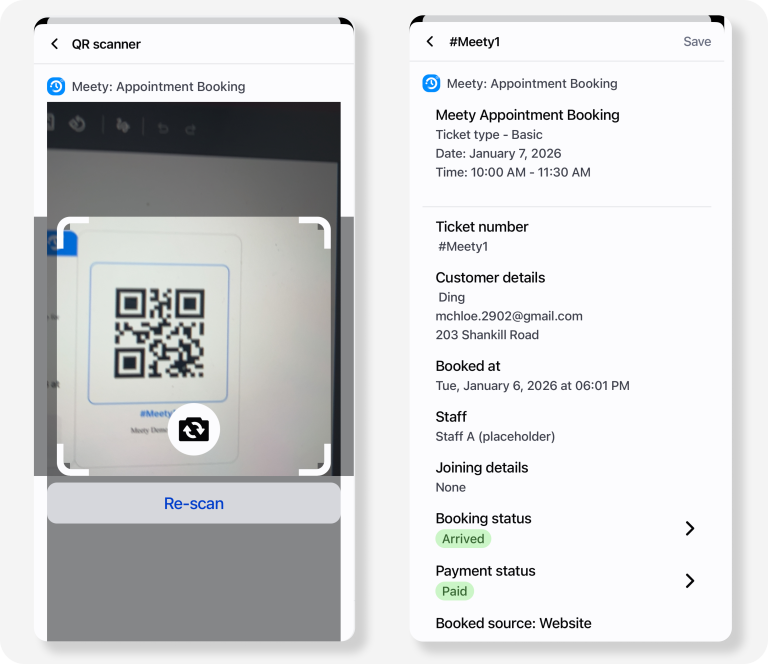
The eTicket / QR Code feature allows merchants to automatically generate a digital ticket for each booking. Each ticket contains a unique QR code that can be scanned at your POS to quickly retrieve booking details and check in attendees.
This makes on-site check-in faster, more accurate, and ideal for offline services, in-store appointments, and events.
1. Enabling the eTicket / QR Code feature
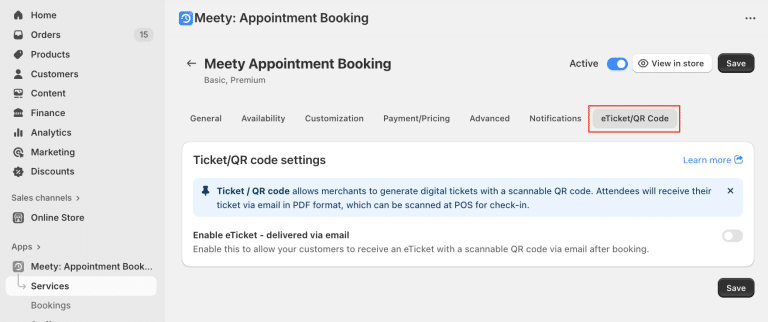
Go to Meety> Service > Click edit the service >eTicket/QR Code tab > Enable Enable eTicket – delivered via email.
When you turn on Enable eTicket – delivered via email toggle, the detailed setup options will expand.
💡 Note: The Ticket/QR Code feature can not be used together withMultiple booking.
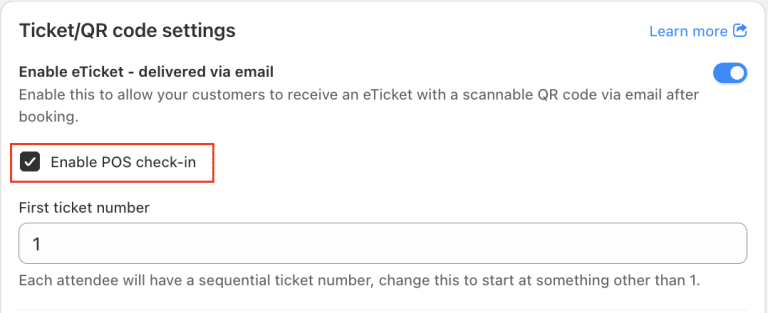
Enabling POS Check-in (optional but recommended): allows you to scan QR codes quickly and check in attendees using Shopify POS.
First ticket number: Choose the number your ticket sequence starts from. Tickets will be numbered consecutively from this point.
Ticket code template: The ticket code is the main and unique identifier for each attendee’s ticket. By default, it is created using the ticket number with a hash symbol (#) in front.
You can customize this by setting a ticket code template. This allows you to create a more branded or standardized format for your tickets.
Example: #Meety{{attendee.ticket_number}}
The generated ticket code will look like #Meety1, #Meety2, etc.
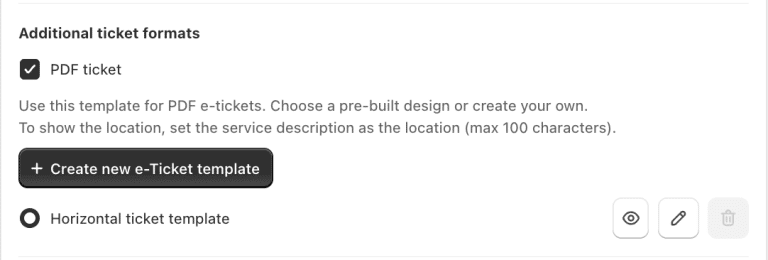
Additional ticket formats – PDF ticket: lets you customize how your eTickets are delivered and displayed.
PDF ticket is not selected: QR code in email only
PDF ticket is selected: Full eTicket PDF attachment in email.
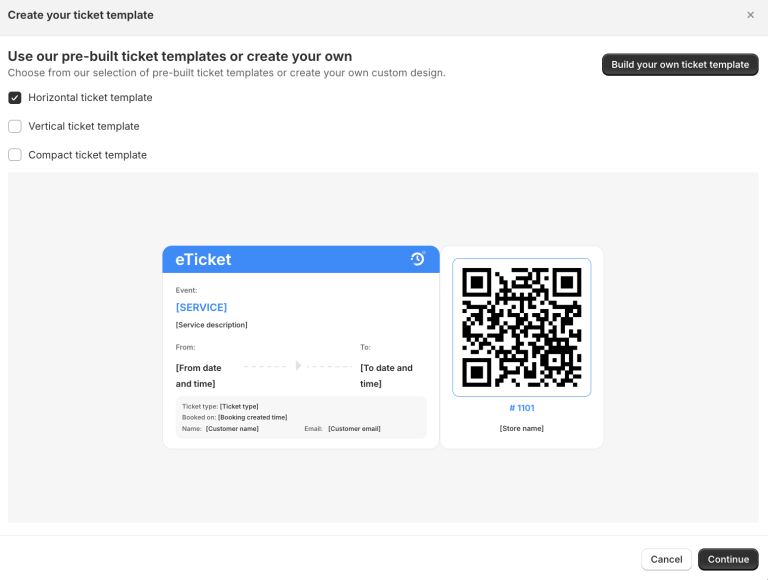
Click Create new eTicket template to design your ticket layout, You can choose a format (Horizontal, Vertical, or Compact) and customize which information appears on the ticket. Use the:
Pencil icon to edit ticket fields
Eye icon to preview the ticket design
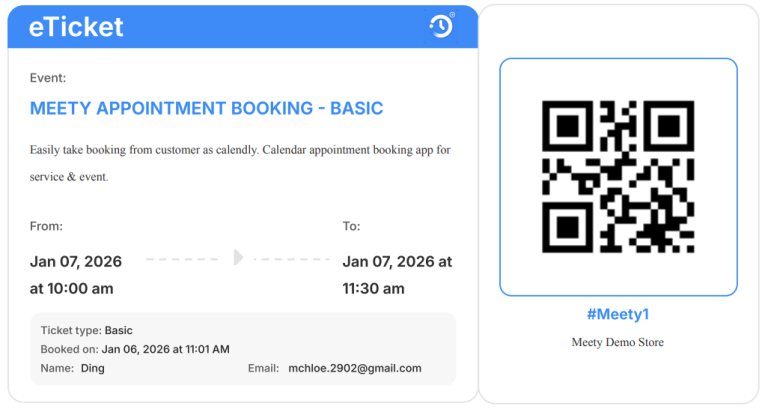
To display the event location on ticket, we recommend adding location to the product description (up to 100 characters). This information will then appear as shown in the example below:
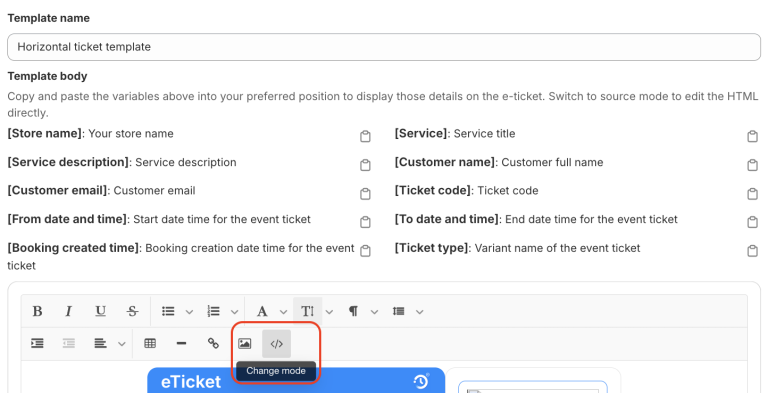
In addition, switch to HTML mode to customize the template – edit colors, add variables, and insert images.
When should the tickets be sent?: Choose when tickets become valid. Before this point, QR codes cannot be used for check-in.
After payment: Tickets are sent and activated as soon as the order is paid
After fulfillment: Tickets are activated only when you mark the order as fulfilled in Shopify
Manually: Tickets are sent and activated only when you trigger them yourself.
2. How customers receive eTicket
After booking and payment, your customers will receive an email containing their QR code eTicket (in PDF format or as a QR code only, depending on your settings).
When PDF format is enabled, the ticket is included as an embedded link in the email.
Customers can simply show the QR code on their phone at check-in.
3. Scanning QR code at check-in
When POS Check-in is enabled, you can:
Open the Shopify POS app
Use the camera to scan the QR code on the customer’s eTicket
Verify booking details and complete check-in instantly
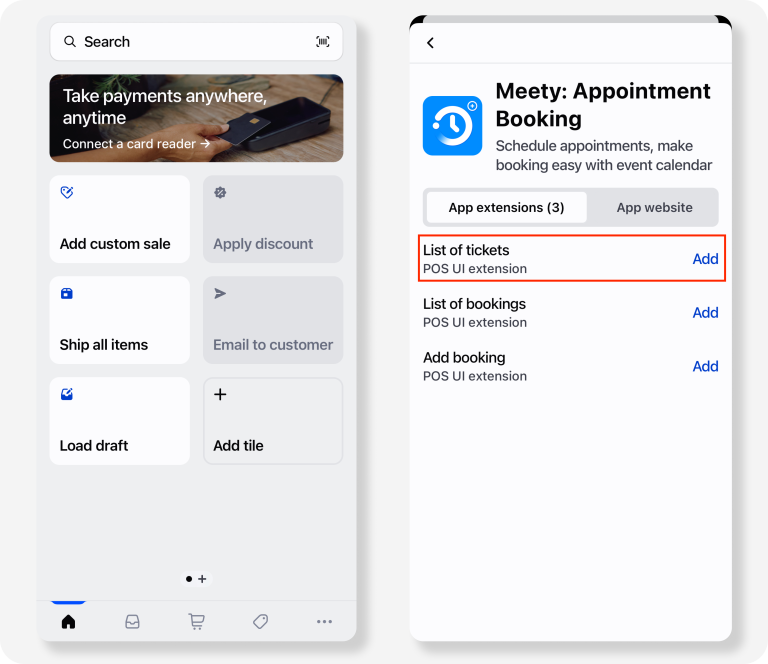
Open Shopify POS > Add tile > App > Meety: Appointment Booking > Add List of tickets > Save.
General
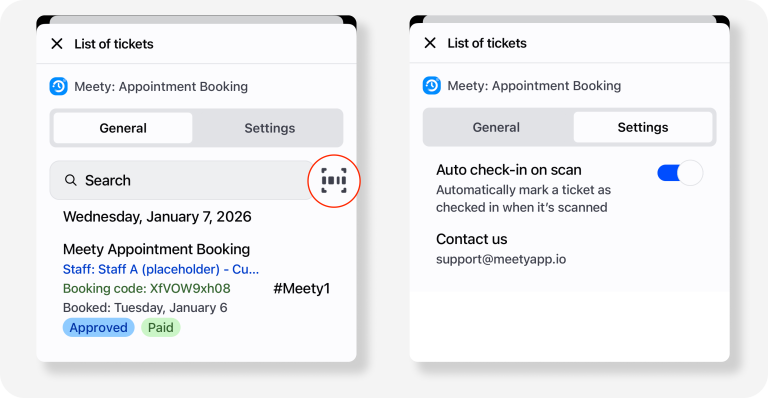
You can view the full list of tickets, sorted by time, and scan QR codes to check in attendees.
Settings
You can enable Auto check-in on scan to automatically mark tickets as checked in when they are scanned.
When enabled, scanned tickets are instantly set to Checked-in.
When disabled, scanning a ticket will show its details first, and you can manually click the Check-in button.
If you need help setting up or customizing your eTicket/QR Code feature, our CS team is here to assist.
Contact us via live chat or email support@meetyapp.io.