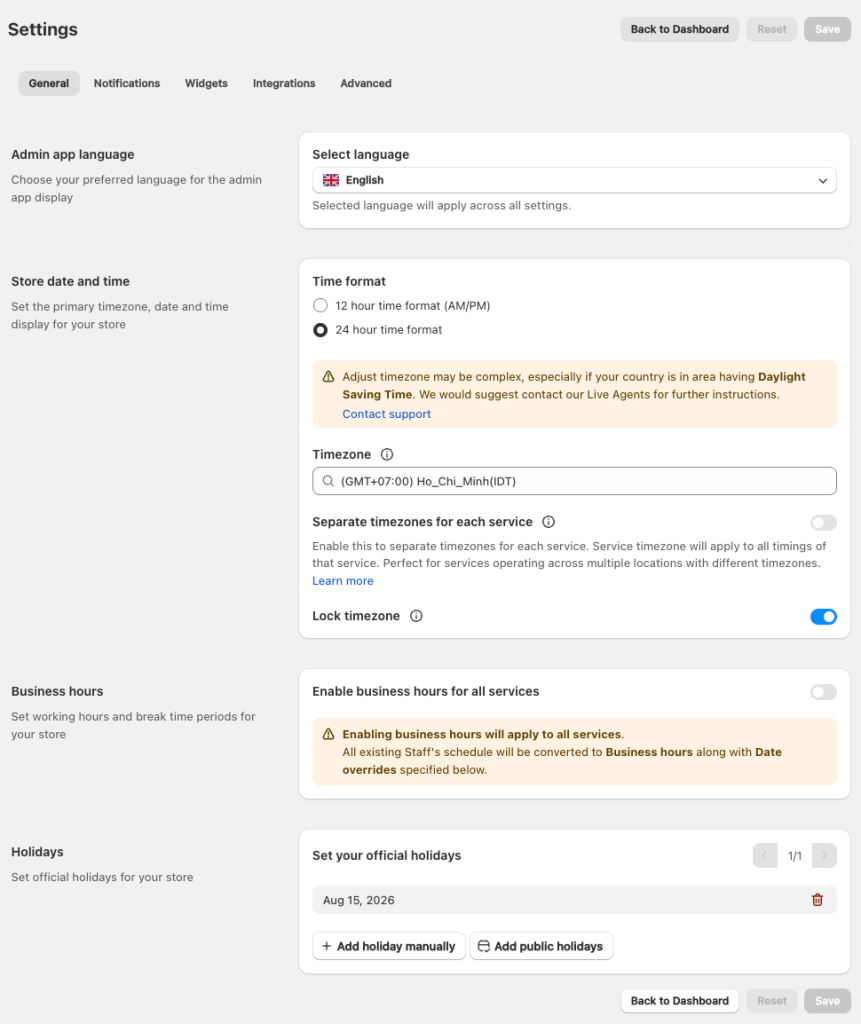
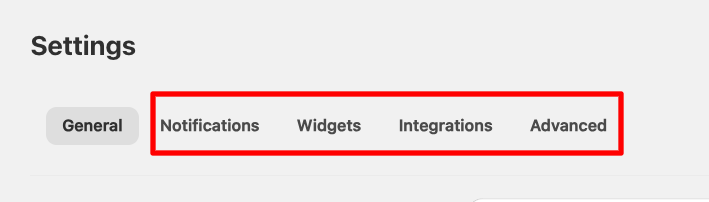
You can go to Meety > Settings to configure the app’s general settings – various functionalities including: Admin app language, Store date and time, Business hours and Holidays.
1. Admin app language
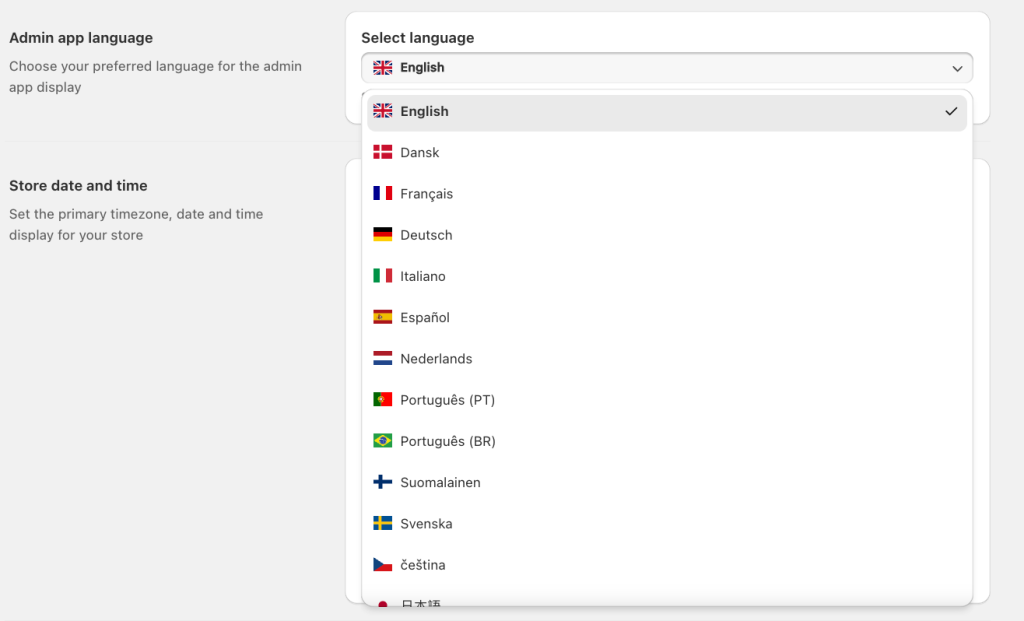
Choose your preferred language for the admin app display by click to dropdown and choose option language.
2. Store date and time
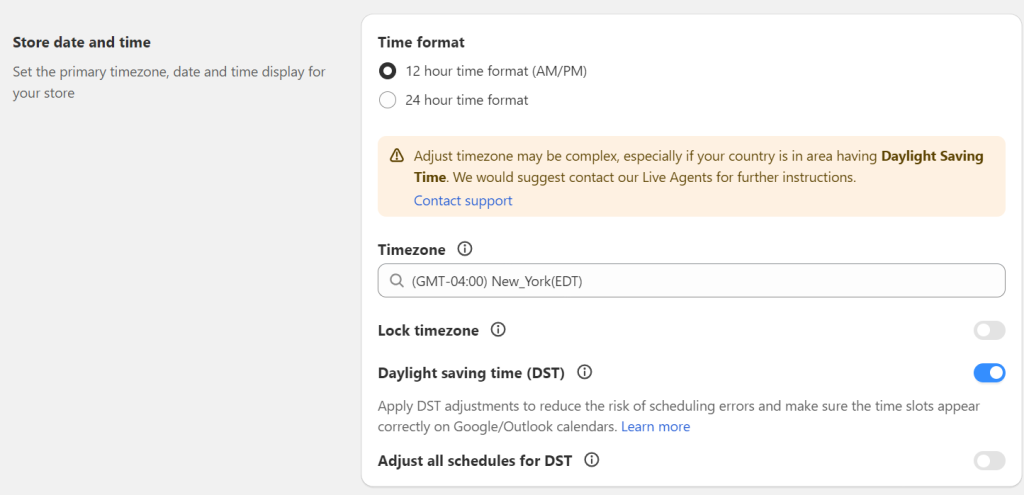
You can set date and time display for your store in Date time:
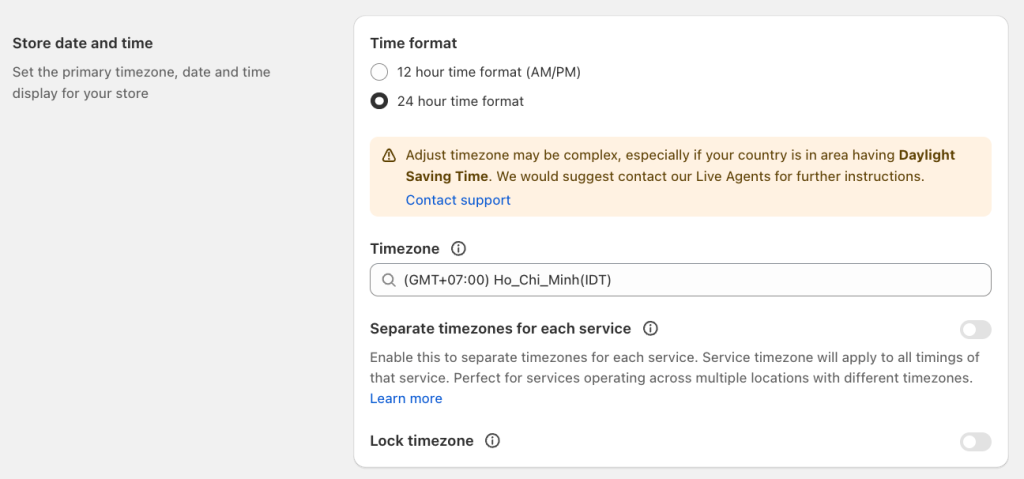
Time format: Select between 2 displays of timing for your store: 12 hour time format (AM/PM) and 24 hour time format
Timezone: Select specific timezone that aligns with your service location
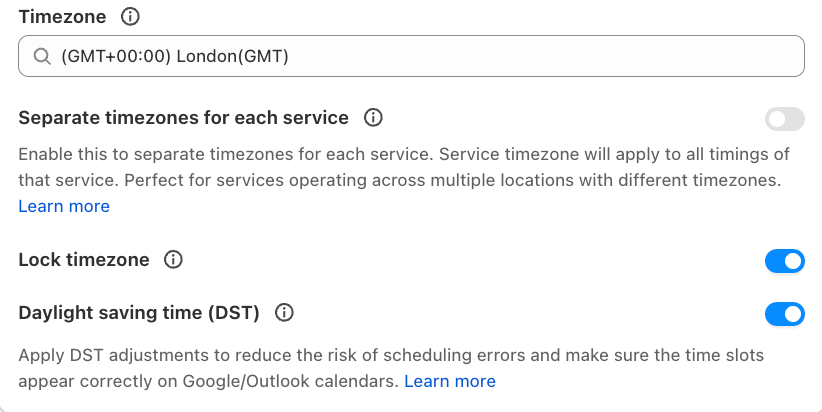
Separate timezones for each service: Enable this to separate timezones for each service. Service timezone will apply to all timings of that service. Perfect for services operating across multiple locations with different timezones.
Lock timezone: Enable lock timezone to set the timings of all services across the store in the selected timezone
Timezone adaptive & DST
Meety’s Timezone adaptive & Daylight Saving Time (DST) feature ensures that your booking times are accurate and automatically adapt to both timezone and DST changes. This feature is available to all users, helping to provide a seamless scheduling experience for both you and your customers.
The DST feature is important in countries that observe it, such as the United States, Canada, the United Kingdom, and Australia. This ensures accurate time display for your customers, preventing scheduling conflicts and improving overall user experience.
Here’s a closer look at how Timezone & DST works in Meety:
a. How to Set Up Your Timezone?
To set up your timezone:
Go to Setting tab > General > Store date and time section > select your Timezone
Note: Choose your original timezone (without DST adjustments)
b. What if My Timezone Observes DST?
Daylight Saving Time (DST) is the practice of moving the clock forward by one hour during warmer months, typically starting in spring and ending in autumn.
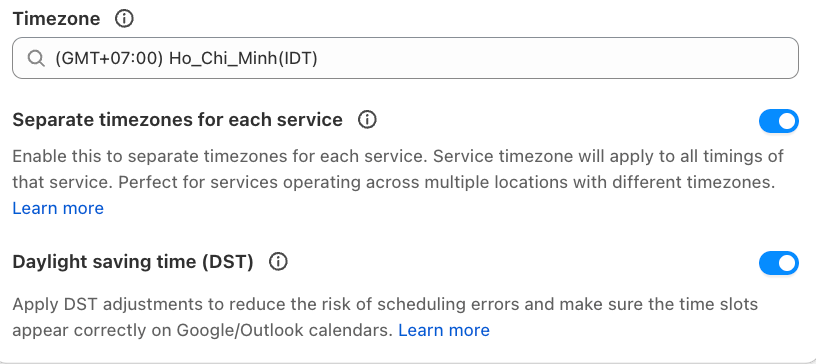
If the timezone you select observes DST, the DST feature will be automatically turned on from the start. You may turn it off manually if you prefer not to use DST adjustments.
c. How to use the DST feature?
To manage DST feature:
Go to Setting tab > General > Store date and time section > turn on/off DST
Note: Meety will automatically enable this if your timezone is currently observing DST
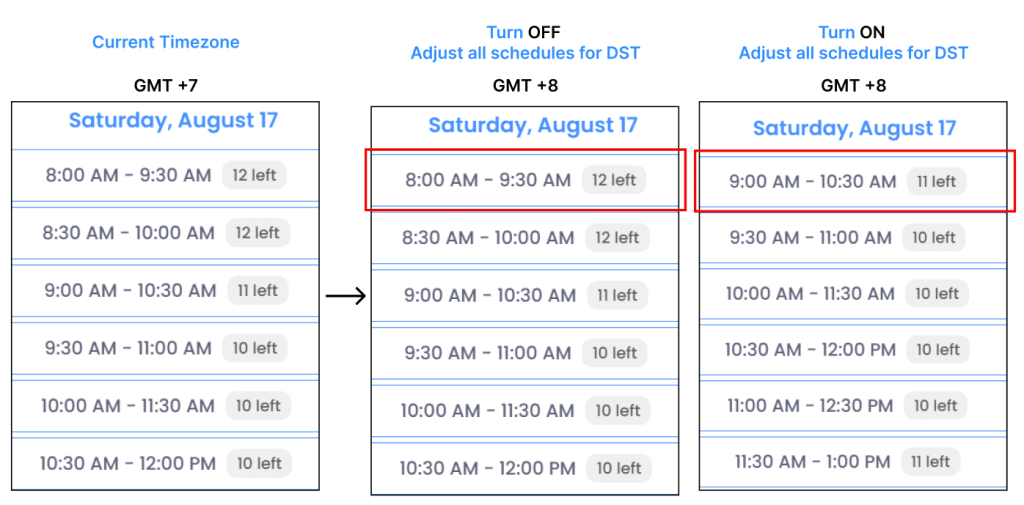
Note: When the DST feature is turned on, all timeslot displays on the widget, Google Calendar, invitations, email reminders, and more will align and remain consistent with what you have set up.
d. Suggestions from Meety for Working with DST
If a customer in a DST-observing timezone books a time slot outside of the current DST period, Meety will automatically display the time in standard (non-DST) time, ensuring accurate local timing for both you and your customers.
Recommendation:
To further prevent timezone-related booking confusion, we suggest enabling the Lock timezone feature and displaying the timezone on your widget. These options provide added clarity by consistently showing the correct timezone on the booking widget.
To enable Lock timezone feature:
Go to Setting tab > General > Store date and time section > turn on Lock timezone
If enabled, customers will view all timings and schedules in your store’s set timezone rather than in their own local time
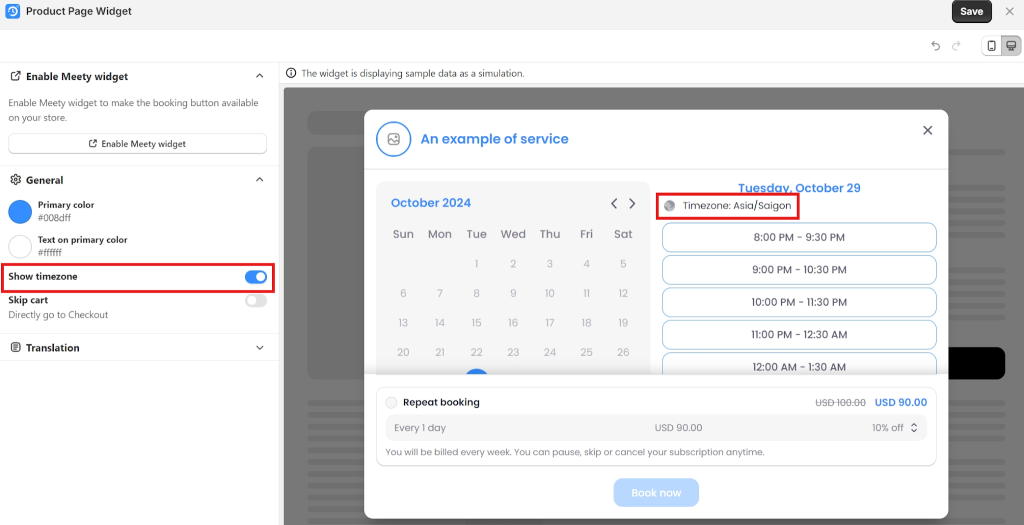
To display the timezone on your widget:
Go to Setting tab > Widget > Product page widget section > click Customize
In General section > turn on Show timezone
If turned on, customers will see the exact timezone of the time slots they are booking for, helping to prevent confusion
3. Business hours
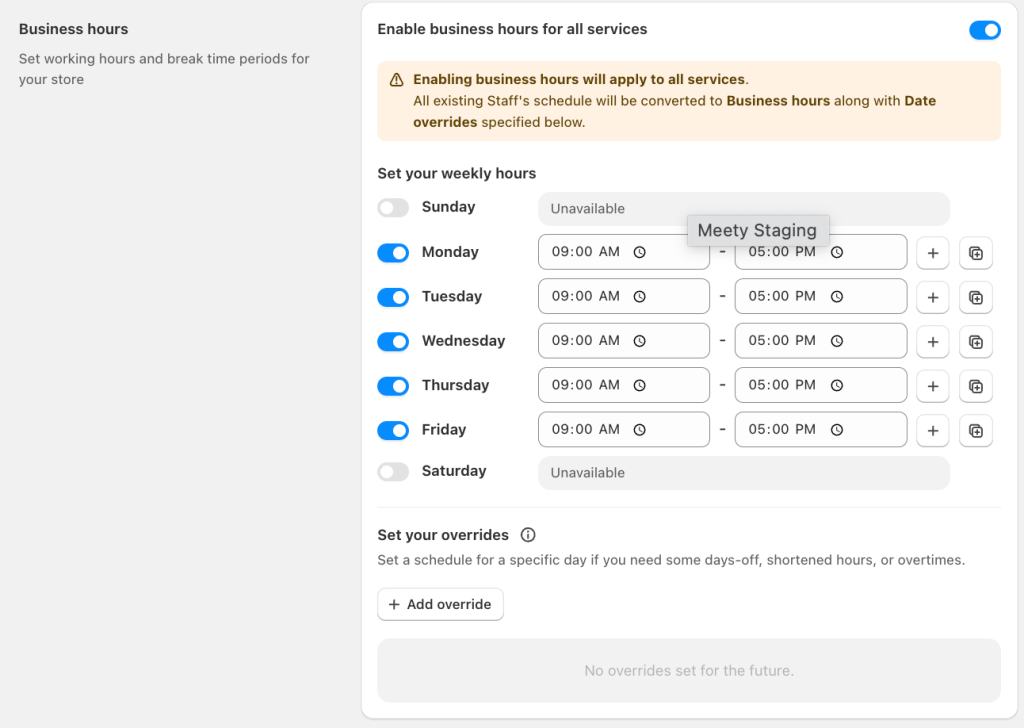
You can set working hours for your store in Business hours. Enable business hours for all services will convert the working hours of all your services to the weekly hours along with the date overrides specified in the section.
Set date overrides for your store in case there are changes in your days off, shortened hours or overtimes.
4. Holidays
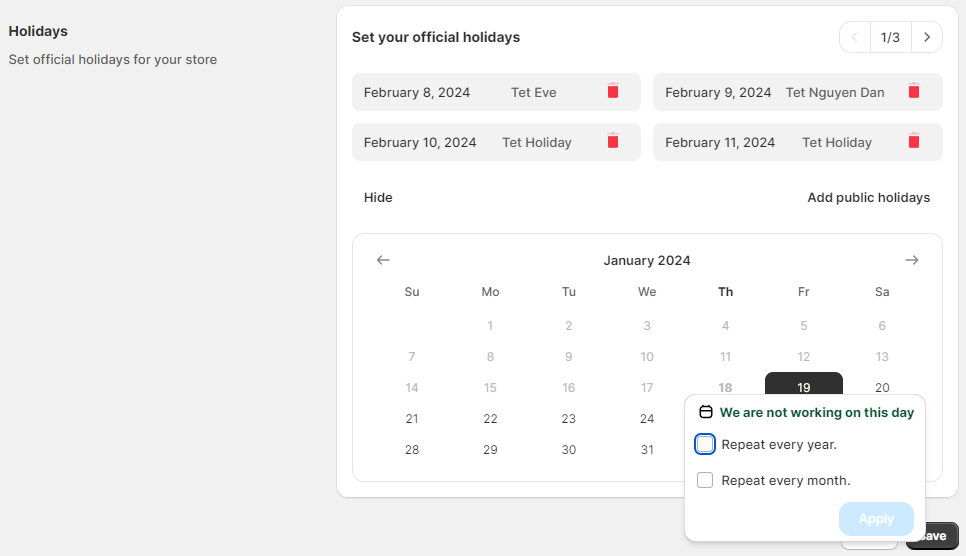
You can set up official holidays or days off for your business. You can add holidays manually or click the Add public holidays to automatically add public holidays to your schedule.
To save all changes, click the Save button at the right bottom of the page. To reset all changes, click the Reset button.